 Michele Eccher
On this page
List the pages and links you already have
Choose a manageable group of pages, such as a category, its guides, and the related service page. You need a list of published URLs, access to read the pages, and a spreadsheet. To make changes, you also need access to the CMS or help from the person who develops the site.
Export your URLs from the CMS and compare them with the sitemap. Add any known pages missing from both lists. Search Console and server logs can help you find these if you have access. Keep public URLs separate from drafts, private areas, and confirmation pages: not every page belongs in the navigation.
On a small site, start at the homepage and follow the links. Record each link's source page, destination, visible text, and location: menu, article body, footer, or card. For a larger site, use a crawler to export these relationships. Run a crawl that follows links from the homepage, keeping URLs loaded from sitemaps or lists separate. Giving a URL to the crawler does not prove that visitors can reach it by following links.
If you have not yet decided which questions need their own pages, start with the guide to content mapping and topical authority. This guide covers links between pages you have already identified.
Is a page missing from the crawl really an orphan?
An orphan page has no incoming internal links from other pages on the site. It can still have outgoing links, and you can open it by entering its URL. To find possible orphan pages, compare your CMS and other URL lists with the pages reached by following links. Check the URLs missing from the second list first.
Before calling them orphan pages, confirm that the crawl finished, included the relevant site sections, and could read links generated by JavaScript. Check menus and archives too. A page linked from a category but never mentioned in an article already has an incoming link. It may need a contextual link, but it is not an orphan. If your audit covers only part of the site, record "no links found within the crawl scope." Pages elsewhere on the site may link to it.
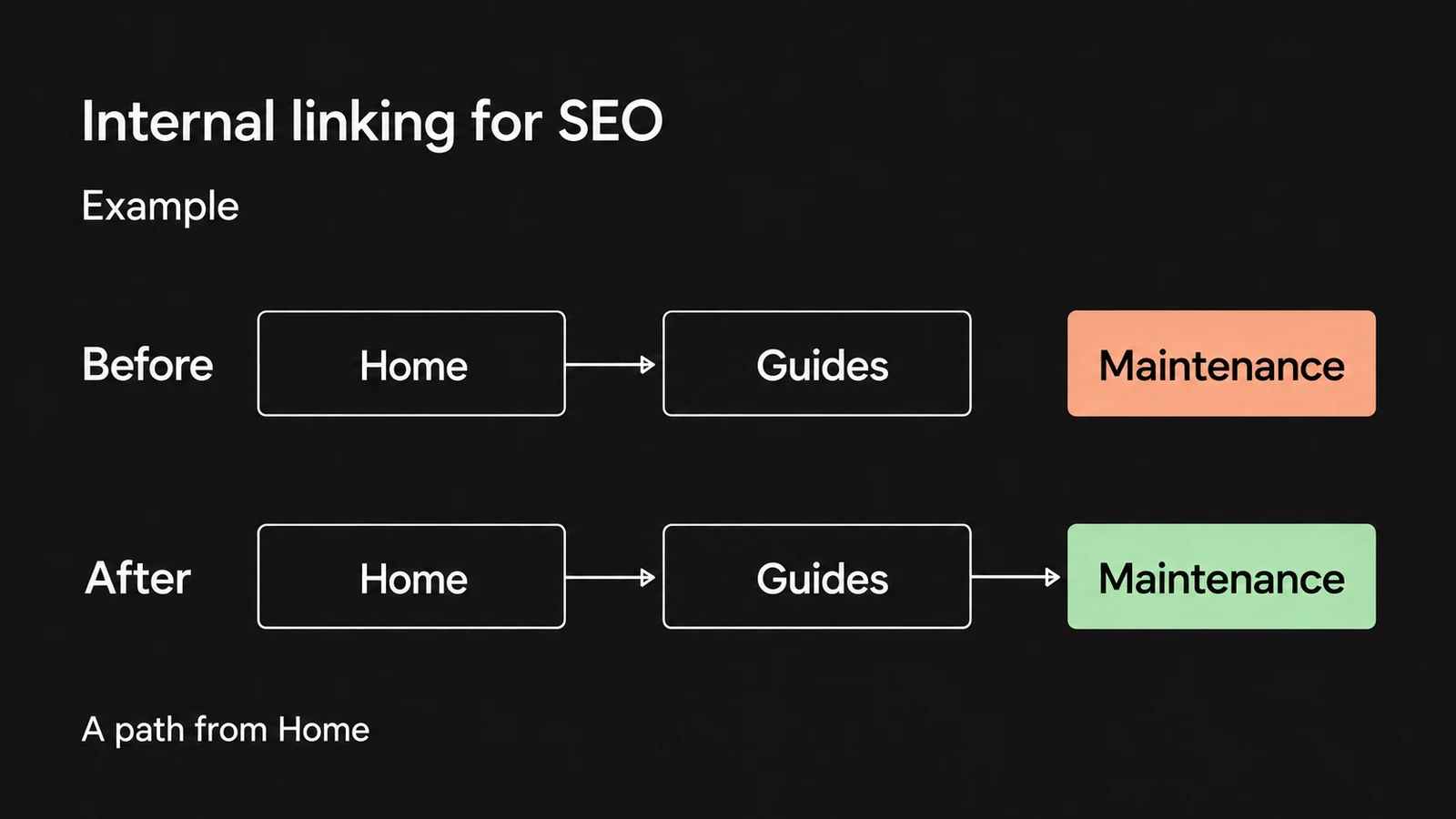
Also check where incoming links originate. Two pages can link to each other while both remain unreachable from the homepage. Alongside the incoming link count, record an actual navigation path, such as "Home, Guides, Maintenance."
If the isolated page is useful and up to date, find a relevant page to link from. If it contains an expired offer or repeats an answer you already cover, first decide what to keep. A content audit can help you make that decision. Linking to outdated content makes it easier to find without updating it.
A five-page site: which links should change?
Imagine a bike shop with five published pages. This is a fictional example, with no customer traffic data or results. The homepage links to the guide index and repair service page. The index lists only the guide to choosing a bike. The maintenance guide is in the sitemap, but no page links to it.
| Page | Path | Available content |
|---|---|---|
| Home | / | An introduction to the shop. |
| Guides | /guides/ | An index of articles. |
| Choosing a bike | /guides/choosing-a-bike/ | Selection criteria, including maintenance needs. |
| Maintenance | /guides/bike-maintenance/ | Maintenance checks and when to take the bike to a shop. |
| Repair service | /bike-repair/ | Services and how to book an appointment. |
The buying guide has a "click here" link back to the homepage, which does not provide the additional information the link promises. The maintenance page has a button for the repair service. It works when clicked, but has no href. Each problem needs a different fix.
Before
No page links to Maintenance. The dashed line represents a JavaScript button without an href.
After
Maintenance is reachable from the index and the buying guide. The link to the repair service is now an HTML link.
| Source and destination | Change | Reason |
|---|---|---|
| Guides → Maintenance | Add "Bike maintenance" to the index. | Make the article reachable from the guide collection. |
| Choosing a bike → Maintenance | Add "bike maintenance checks" to the paragraph about upkeep. | Help readers assess maintenance needs before choosing a bike. |
| Maintenance → Repair service | Replace the button with an HTML link: "schedule a bike checkup." | Make the service URL available to crawlers. |
| Choosing a bike → Home | Remove "click here" from the article body. | The homepage does not provide the promised detail. The logo already links back to it. |
Before these changes, four of the five pages are reachable from Home, counting Home itself. Afterward, all five are reachable. The maintenance guide has two new incoming links with different purposes: one lists it in the index, and one introduces it while the reader is choosing a bike. These counts describe navigation through the example site. They do not predict a ranking improvement.
Choose link text that fits the sentence and destination
Anchor text is the visible, clickable text of a link. Google's link best practices recommend concise, descriptive text that is relevant to both pages. In the bike example, the link could fit into this sentence:
Before choosing a bike, review the bike maintenance checks and decide which you can handle yourself and which need a repair shop.
Link the words "bike maintenance checks" to the relevant article. Linking only "here" would hide the destination. Linking the entire sentence would include words that do not help identify it. If your CMS suggests a different title, check that it still describes the page and reads naturally in the sentence.
To decide whether a link is useful, open its destination and look for the answer the anchor text promises. "Bike repair prices" calls for pricing information. If the page contains only a form, "request a quote" describes the action more accurately. Do not pad the sentence with synonyms just to vary your keywords.
Google does not specify an ideal number of links per page. Keep a link when it gives the reader a useful next step. Remove links that do not fit the paragraph or repeat another link for no reason. A menu link and a body link can both be useful: one helps visitors navigate, while the other appears where they need more detail.
Check the HTML link, even when you use JavaScript
Google recommends an <a> element with an href pointing to a usable web address. A click handler on a button or an element without an href is less reliable for URL extraction. The link in our example would look like this:
<a href="/bike-repair/">schedule a bike checkup</a>JavaScript can add valid links to the DOM, the page structure after scripts have run. If a framework handles navigation, check the HTML it produces. The component's name in the source code does not tell you enough. Google's JavaScript SEO guide explains how Google can also extract links after rendering.
In your browser, right-click the link and select "Inspect." Find the <a> element, read its href, and open that address directly in a new tab. Check that it shows the expected page without requiring a visit to the homepage first. An href="#" does not identify another page. A link such as /bike-repair/#appointments can take readers to a specific section, provided that section exists.
If more articles appear only after someone clicks "Load more," check how those later articles can be reached. Google's pagination guidance explains that its crawlers do not click buttons and generally do not trigger JavaScript functions that require user interaction. Provide crawlable URLs and links to items beyond the first group too.
Record each change and the test you will repeat
Use one row for each link you need to add, fix, or remove. Enter full URLs from your site in the source and destination columns. The sample file uses https://example.com only for the fictional site. The anchor column holds the final link text, or the text to remove for a deletion.
In reason, explain why the reader needs the link. In verification, describe a repeatable test. For the index row, for example: "Open Guides, find the Bike maintenance link, check its href, and reach the article on desktop and mobile." After publishing, record the date, outcome, and evidence in verification_notes without deleting the planned test.
Import the file into your spreadsheet using UTF-8 encoding and commas as separators. The blank template contains only headers, so you can enter your URLs without removing sample rows. Its fields are source, destination, anchor, location, action, reason, verification, status, verification_date, and verification_notes. Use "to do," "ready to verify," "verified," or "needs correction" for the status. Every row in the sample is still marked "to do." It is a fictional plan, not a record of tests performed on a real shop's site.
Verify the link and navigation path after publishing
Open the published source page
Reread the sentence containing the link. Check that its anchor text and location match the tracker. Try it on desktop and mobile; for menu links, check that you can open the navigation too. For a removal, confirm that the intended link is gone and the remaining sentence makes sense.
Check where the link takes you
Inspect the HTML, open the destination, and check its content. In your browser's developer tools, open the Network tab, reload the URL, and read the status of the document request. For a 404, fix the address or choose a relevant replacement. If there is a redirect, update the link to the correct final URL. Open pages that return 200 too: they can still be blank or display an error message.
Follow the path from the beginning
Start at Home without pasting in the destination URL. For the example site, follow Home, Guides, Maintenance, then Repair service. Also check the link from the buying guide to Maintenance. If you use a crawler, rerun it with the same starting page and settings. Do not use URLs supplied by a sitemap as proof that the pages are reachable through links.
Save the results in your tracker
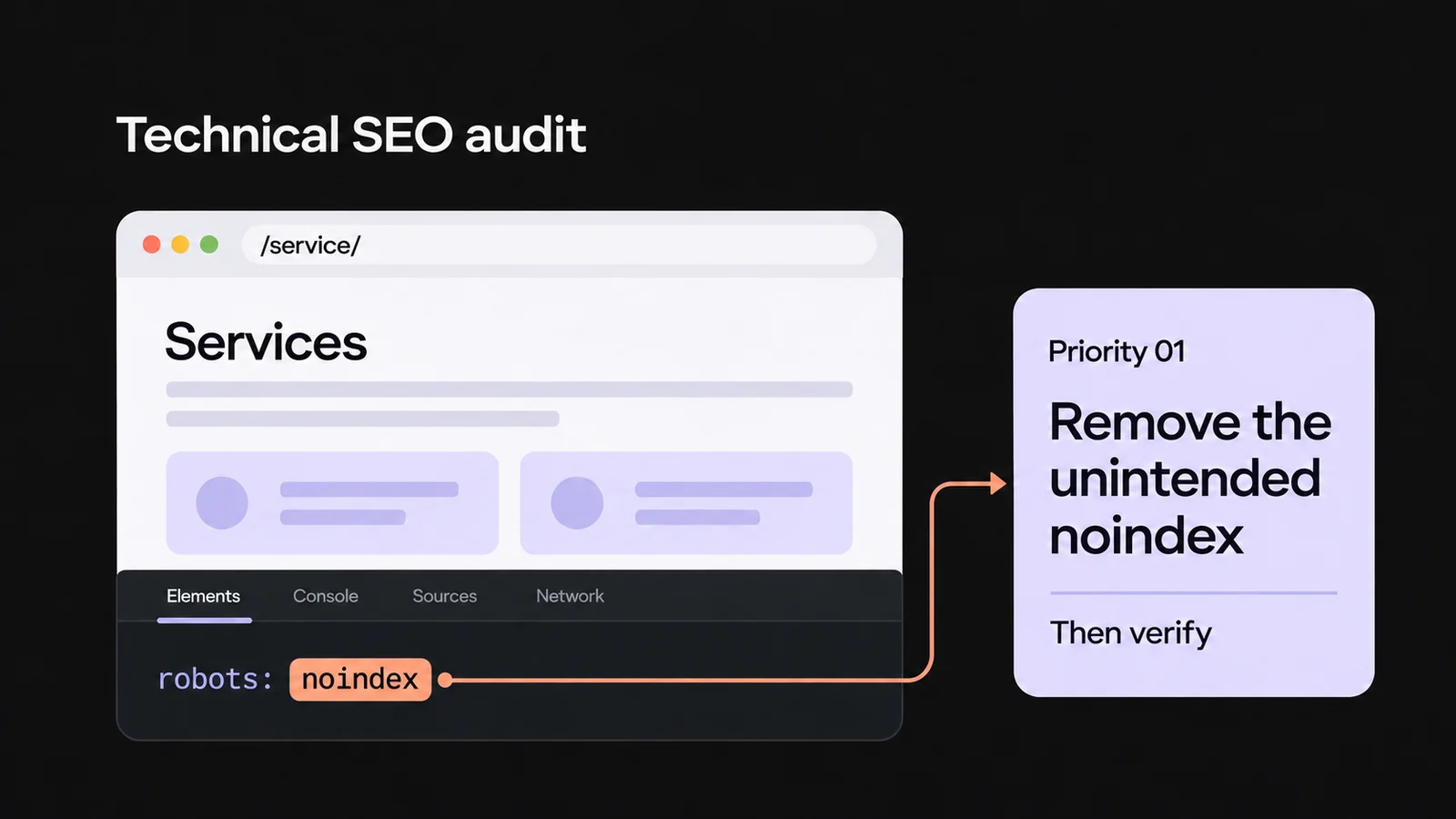
Mark a row "verified" only after completing the planned checks, and enter the date as YYYY-MM-DD. In the notes, record the final URL, HTTP status, and path you tested, or the issue that still needs fixing. If indexing directives, access restrictions, or rendering cause the problem, use the technical SEO audit to investigate.
With access to Search Console, you can also check what Google can fetch. Enter the source page's URL in URL Inspection, select "Test live URL," and open "View tested page." Look for the destination and anchor text in the HTML, especially when JavaScript adds them. A live test does not prove that the updated version is already indexed. Check the indexed data and last crawl date separately.
Repeat these checks when you publish a guide, change a menu, or move a destination page. To assess changes in traffic and inquiries, keep the dates of your edits and compare like-for-like data using the guide to measuring SEO results. A later increase in clicks alone does not prove that the new links caused it.
Image links and automatic links
Can I use an image as an internal link?
Yes. If the image is the link's only content, its alt text should describe the destination or action. For a card linking to the repair service page, for example, "Bike repair service" is more useful than the image's filename. Google uses the alt attribute as anchor text for linked images. Check that the card also works with a keyboard.
How should I handle links my CMS adds automatically?
Check the rule that generates them, then open pages covering different topics. A related-articles block that matches just one shared word may suggest content that does not answer the reader's next question. Adjust the selection rule in your CMS and recheck the pages that use that block. Keep a manual override for links that need editorial judgment.