 Michele Eccher
On this page
Start with one product or service
Choose a product or service and write down who you sell it to, the area you serve, and what you do not offer. For a first round, you might collect about 20 queries about that offering. This keeps the list small enough to examine the results; it is a practical limit, not an SEO requirement. Expand it as you find relevant needs you have yet to cover.
Imagine a company that sells and installs new vinyl and aluminum windows in Denver. It does not sell used windows or install window screens. Its site has a local service page and a guide comparing frame materials. We will use this fictional business in the worked example below.
Gather relevant URLs from the website and CMS, along with each page’s title and purpose. You will need them to check whether a query already has a suitable page. If you still need to establish which topics the company can cover with expertise, start with a topic map for topical authority.
Where to find queries and how to record their sources
A query is a phrase entered into a search engine. A phrase taken from an email or suggested by your team is still a search hypothesis in the worksheet. Recording its origin keeps you from treating plausible wording as demand you have already observed on Google.
Customer questions and the terms you use for your offering
Read quote requests, support questions, and internal site searches, where available. Note the wording and context without copying personal information into the worksheet. For example, “Does the quote include installation?” could suggest a search about window replacement costs. Keep a reference to the original question alongside the query you want to check.
Start with product and service names, then try modifiers that change the request: material, application, problem, comparison, or service area. “Vinyl windows” is a starting point; “vinyl vs aluminum windows” introduces a choice. Avoid automatically combining keywords with cities you do not serve or products you do not sell.
Searches your site already appears for
In Search Console, open the Search results performance report and select the Web search type, country, and date range. The last three complete months can be a useful starting point; record the dates and any device filter. Collect relevant searches from the Queries tab. Select a query, then open Pages to see the associated URLs. You can also start with a page and view its queries. Google’s Search Console filtering guide explains the available options.
Save the export and record its filename in the worksheet. Those impressions describe your site’s visibility, not all searches in the market. Also, Search Console omits some queries because of privacy protections and data limits. A missing row does not mean there were no searches. If you do not have access to the property, continue with other sources and mark this check as outstanding.
Suggestions, keyword tools, and competing websites
Enter your starting terms into a search engine and note relevant suggestions and questions, along with the date and original query. These give you wording to investigate. Autocomplete also depends on location and previous searches and is subject to filters; Google explains that it does not always show the most popular terms.
If you already have access to Google Keyword Planner, you can find ideas by entering terms or a website. Check the selected location, language, and network, and keep the export. Keyword Planner is a Google Ads tool; Google requires you to complete account setup with billing information to access basic features. You can collect your initial list without it.
Open the pages you find for your main queries, too. Category names and the questions they answer may suggest terms you missed. In your worksheet, distinguish a term found on a competitor’s page from a query observed in Search Console. A competitor’s title alone does not establish that people search for that phrase.
How to interpret search volume, impressions, and other metrics
Before sorting keywords by volume, check what the number measures and which market it covers. Keep the date range and source with the value. Comparing different countries, periods, or tools can lead you to prioritize the wrong queries.
| Metric | What it measures | How to use it |
|---|---|---|
| Search Console impressions | Appearances of your site for the selected queries and filters. | Find searches your site already appears for and check which page shows up. |
| Average monthly searches in Keyword Planner | An average for the keyword and its close variants, based on the selected period, location, and network. | Compare estimated demand using the same settings. Avoid adding together variants the tool has already grouped. |
| Google Trends interest | A relative index normalized to a scale from 0 to 100. | Examine trends and seasonality. A value of 100 does not mean 100 searches. |
The Keyword Planner documentation distinguishes historical data from advertising forecasts. Its Competition column measures advertiser competition; it does not measure how hard it is to rank a page in organic results. Click forecasts also depend on advertising settings and budget. They do not forecast SEO visits.
If you use an SEO tool’s keyword difficulty score, read how it is calculated and compare scores from the same tool. Open the competing pages before rejecting a query. Check the answers they provide, the evidence they show, and whether you can create something useful for that need.
Leave unavailable volume data blank and explain why in the source column. If a tool gives you a range, keep the range. Even a zero needs context: Google Trends may show zero for low-volume terms. A question that comes up in real quote requests may deserve an answer for your customers even when you cannot estimate its traffic.
Check search intent and page format in the results
Search intent is what someone wants to accomplish. Describe it as a task: “find an installer serving Denver,” “compare vinyl and aluminum,” or “estimate the cost of replacing windows.” Labels such as informational, commercial, transactional, and navigational help you filter the list, but do not fully explain what page is needed.
For each relevant candidate, search the full phrase and record the date, country or location, and device. SERP stands for search engine results page. For an initial review, you can open the first five organic results. Treat this as a working sample and expand it if different needs emerge. Record unexpected results as well; do not replace them with pages that support your initial assumption.
As you read, record:
- The URLs you opened and the page types: service, category, product, guide, comparison, or another format.
- What those pages help people do and what information they ask readers to provide.
- Differences between results, such as selling windows alone versus supplying and installing them.
- Maps, product listings, videos, ads, or AI-generated answers, separately from the organic URLs you reviewed.
Ads alone do not mean everyone making that search is ready to buy. If the results mix catalogs and guides, mark the intent as “mixed” and describe both needs. Try a more specific phrase, adding “with installation” or “comparison,” and check again. If the ambiguity remains, leave the destination unassigned and record what you still need to establish.
Keep the links you reviewed. “Commercial SERP” is not enough to reconstruct a decision. For a local search, also check and record the location shown at the bottom of Google’s results page. If it differs from the service area, repeat the check for that area before assigning the query. Google uses geographic context even when results are not personalized.
When to group keywords and when to use separate URLs
Compare candidates that seem closely related. If the audience, task, and answer format match, put them in one group and assign a main page. The same URLs appearing in both sets of results can support that decision, but read the pages themselves. Similar terms can describe different tasks: buying a window and learning to adjust its hardware need different answers.
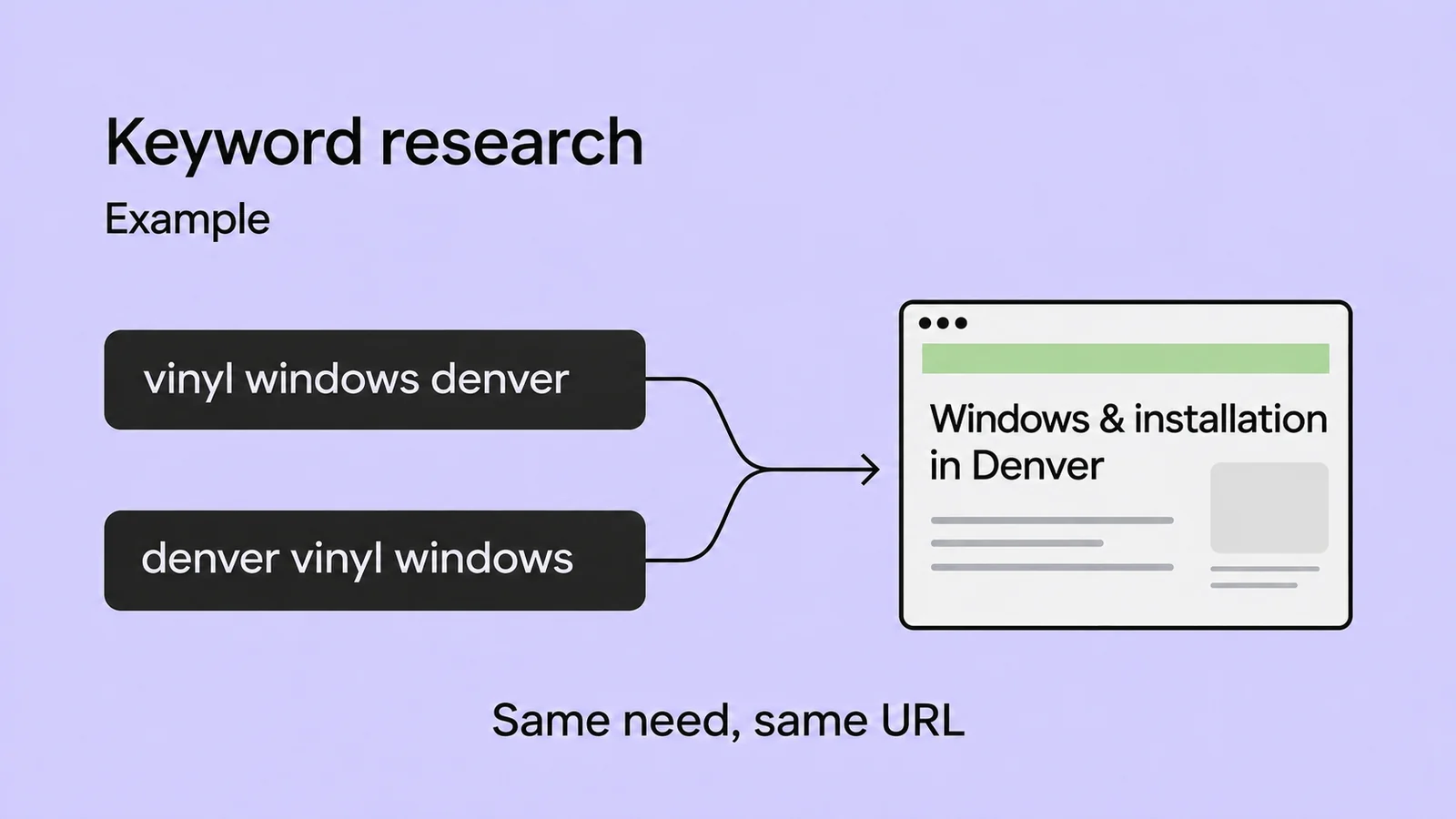
Choose one primary query that describes the group’s shared need and keep the others as variants. Google can match a page to many queries without every phrase appearing word for word. You do not need a heading or a new article for every synonym.
Next, open your existing pages on the topic. Assign the group to a page that already answers the need and note any missing information. A new page is justified when a distinct answer is missing and you can produce the required format and supporting material. If the current page already does the job, record the assignment. Finding another keyword variant does not automatically call for an update.
If two existing pages both look suitable, record the conflict before creating a third. Decisions to merge, redirect, or retire content belong in an SEO content audit. Use the keyword worksheet to keep track of the uncertainty and the URLs to review. Similar queries alone are not a reason to remove a page.
Example: seven queries for a window company
This fictional company serves homeowners in Denver and installs new vinyl and aluminum windows. The queries, business sources, pages, and search results described here are simulated. They are not Qreativa client data or observations of current search results. No search volumes are assigned. The paths illustrate pages on the fictional company’s website.
| Query and simulated source | Assumed intent and result format | Existing URL | Decision and destination | Reason |
|---|---|---|---|---|
| “vinyl windows denver,” service list | Find a local supplier; service pages and maps. | /vinyl-windows-denver/ | Update the same URL. | The page offers the service but does not clarify whether installation is included. |
| “denver vinyl windows,” quote request | The same need for windows and installation; service pages and maps. | /vinyl-windows-denver/ | Update the same URL as part of the same task. | A variant of the need already assigned. No second page is needed. |
| “vinyl vs aluminum windows,” showroom question | Compare materials; comparison guides. | /guides/vinyl-vs-aluminum-windows/ | Update the same URL. | The comparison exists, but it does not explain the limitations of the models the company sells. |
| “how much does it cost to replace windows,” quote request | Estimate the expense; guides with cost breakdowns and examples. | No dedicated page. | Create /guides/window-replacement-cost/. | The site needs an answer about total costs, with verified prices and what is included. |
| “free used windows,” search suggestion | Find used windows for free; classified ads and marketplaces. | None. | Exclude; no destination. | The company sells new windows and cannot meet this request. |
| “window screen installation denver,” competitor research | Find an installer; local service pages. | None. | Exclude; no destination. | The company does not offer this service. |
| “vinyl windows,” catalog term | Mixed intent; catalogs and guides. | /vinyl-windows-denver/ is a candidate only. | Pending; no destination assigned. | Check whether the search concerns windows alone or windows with installation. |
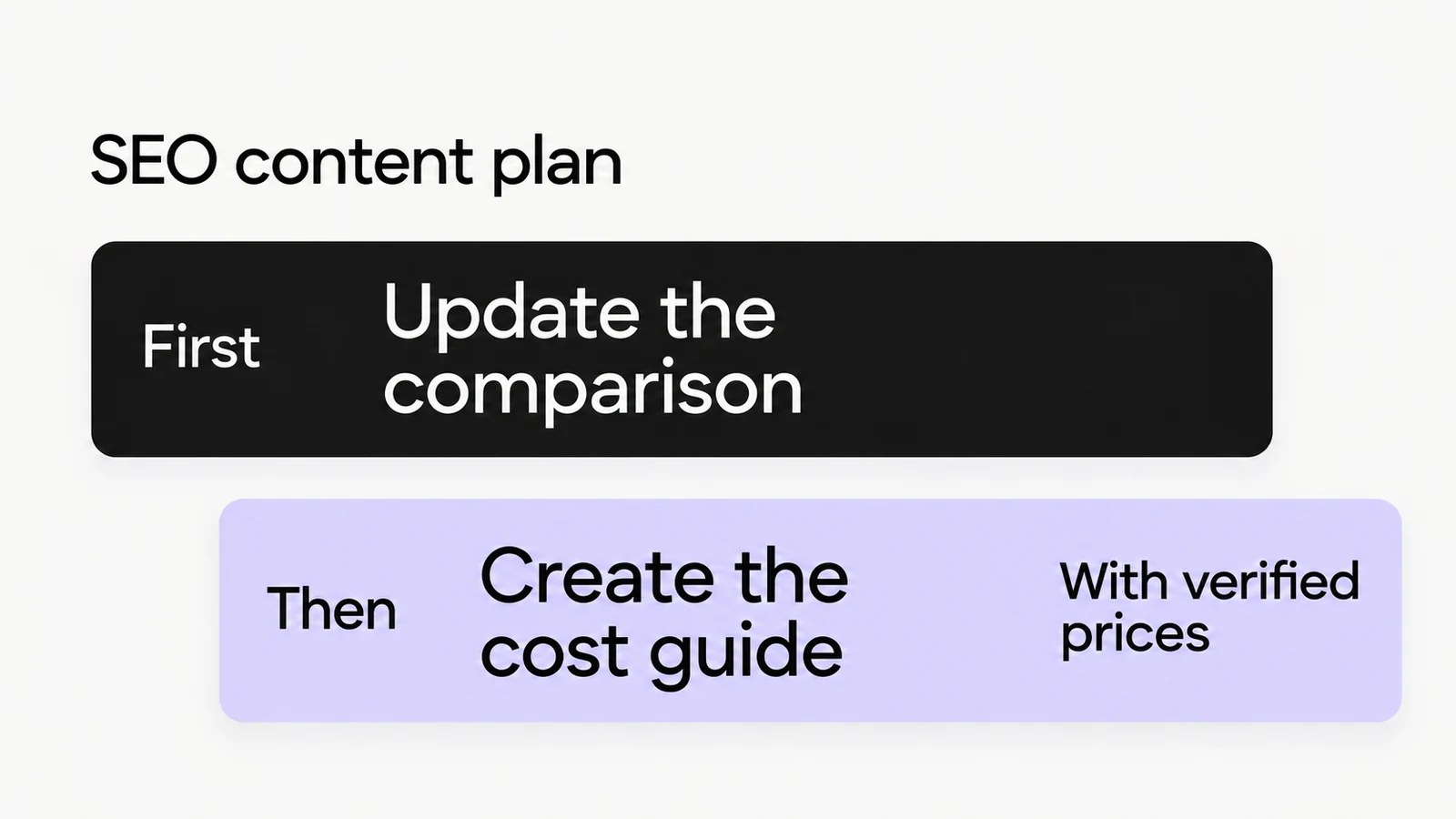
The first two rows lead to one update. Together with the materials comparison and new cost guide, the example produces three tasks across three URLs. Two queries are excluded and one still needs checking. The number of worksheet rows therefore differs from the number of pages that need work.
For the cost guide, choosing “create” identifies the page you need. You still need a price list and installation terms before writing. Record that request in next_check and assign the page for writing when the information is available.
Download and fill out the keyword research worksheet
Use the blank template for your site and the example to see how to document a decision. Both files use the same fields, so you can compare rows without changing the structure.
- Download the blank CSV template.
- Download the CSV with seven simulated queries.
- Read the instructions and field definitions.
Import the file into your spreadsheet using UTF-8 encoding and a semicolon delimiter. Set the columns to text to preserve queries, ranges, and URLs without automatic conversion. The template contains headers only. Add one row per query, keeping variants in separate rows even when they belong to the same group.
Start with the query, its source, and a reference: an export filename, an internal document without personal information, or the URL you consulted. Add the date, market, and device used for the check, then describe the task, intent, and result format. In serp_evidence, keep the URLs you opened and a short note on the need they address. Separate multiple references with a vertical bar.
Then assign a group, an existing URL, and a destination. Use “create” when a new page is needed, “update” for a justified change, “keep” when the existing page is already suitable, and “exclude” for a query outside your scope. “Exclude” applies to the keyword candidate; it is not an instruction to delete a page. If a check is missing, leave the decision and destination blank and set the status to “needs verification.”
In reason, record the observation behind your choice, such as “the page exists but does not explain installation.” Use next_check for the data or comparison still needed. Keep volume, volume source, and period separate from qualitative observations. The example leaves volumes blank and uses “unavailable” in the volume source field.
When the research is ready for a content plan
Filter for rows marked “verified.” Each should have a source, task, reason, and, except for excluded queries, a destination. “Verified” means you performed the recorded checks; it does not guarantee rankings. Keep pending rows visible with their outstanding checks. Do not automatically turn them into new pages.
Group rows by destination URL to identify the work needed without counting the same update twice. To decide what to produce first, consider relevance to the offering, the unanswered question holding the customer back, and whether supporting materials are available. A variant already covered can stay in the worksheet without generating another writing task.
Use this list to build your SEO content plan, where you can define briefs, assignments, and a schedule. Revisit the research when the offering changes, a question keeps coming up, or Search Console reveals relevant queries you had not anticipated. Compare them with your existing assignments before adding more URLs.
More questions about keyword research
Are long-tail keywords always easier to rank for?
No. A specific search may call for technical evidence that is hard to produce, or bring up strong competitors. Read the pages in the results and assess what you can add. The number of words in a query does not tell you how much demand it has or how hard it will be to gain visibility.
Can I use AI to find keywords?
You can use it to suggest different ways to phrase a question or organize a list. Record those suggestions as hypotheses and check whether they reflect a relevant need. A generated list does not prove that people search for those terms. Any search volumes, results, or suggested URLs need a source you can check before you treat them as evidence in your worksheet.